![favicon_GI.png]](https://knowledge.gantner-instruments.com/hs-fs/hubfs/favicon_GI.png?width=40&height=40&name=favicon_GI.png)
Follow these steps to enter maintenance mode on the Q.station controller:
Preparation
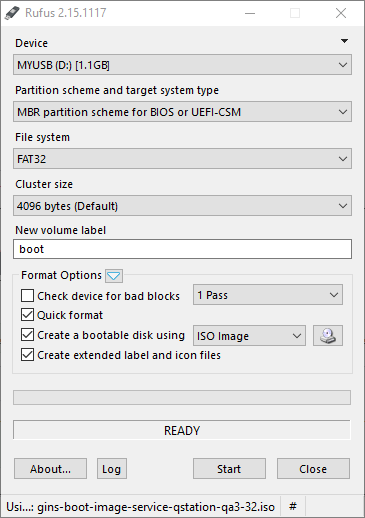
Set the controller to MAINTENANCE mode
-
Switch off the Q.station controller.
-
Plug the USB drive into one of the controller's USB ports (check that no SD card is installed).
-
Connect a USB keyboard to the other USB port.
-
Power on the Q.station and promptly initiate the process by alternately pressing F10 and F11 for a minimum of 10 seconds.
-
Press 2x the up arrow key (↑).
-
Press the Enter key to commence the installation of the Linux image. Allow approximately 5 minutes for the process to conclude. If the Q.station is equipped with a display, wait until it displays "qstation login."
Installing the firmware
-
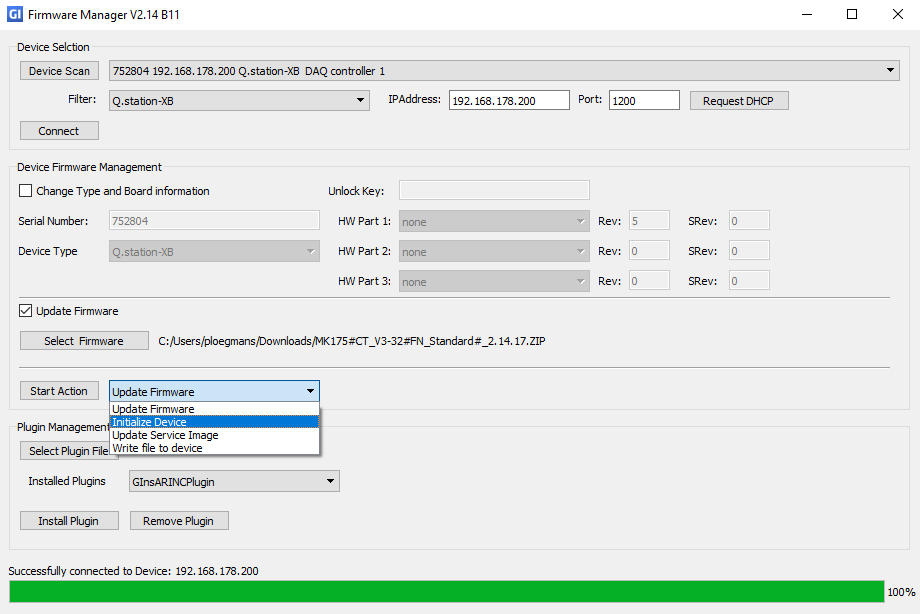
Start GInsFirmwareManager.exe and click Device Scan and check if the controller is found in MAINTENANCE mode.
👉 Device Scan only works if GI.bench is running, if there is no version of GI.bench installed please enter the IP address of the controller manually.
👉 If there is an active DHCP server in the network, click Request DHCP to ensure that the device will get the correct IP address.
-
Click Connect. Successfully connected should be shown at the bottom. Change PC ethernet port IPv4 settings to match the Q.station if necessary e.g. IP 192.168.5.28, 255.255.255.0, 192.168.5.254
-
Enable Update Firmware and click Select Firmware to select the firmware that you want to install (for example MK175#CT_V3-32#FN_Standard#_2.15.xx.ZIP).
-
Select Initialize Device and click Start Action. Wait until finished. Remove the USB drive only when asked for and follow the instructions carefully.
-
Perform a power cycle of the Q.station to complete the installation.
In the event of a failed firmware update, check if the device retains the same IP address after being set to MAINTENANCE mode. If not, use the Device Manager in GI.bench or GI.monitor to reset the IP address to the original one, and then restart the firmware installation process.