![favicon_GI.png]](https://knowledge.gantner-instruments.com/hs-fs/hubfs/favicon_GI.png?width=40&height=40&name=favicon_GI.png)
GInsMQTTPlugin enables supported Gantner Instruments controllers to publish measurements to MQTT brokers and receive numeric values into predefined Setpoint variables. Configure connections and mappings through its web interface. Historical publishing can transfer buffered samples after reconnection, subject to available buffer capacity; buffered data does not survive a controller restart.
What is MQTT?
MQTT (Message Queuing Telemetry Transport) is a lightweight messaging protocol designed for reliable data exchange between connected devices, sensors, cloud platforms, and IoT applications. Using a publish/subscribe model, MQTT enables efficient real-time communication with minimal bandwidth and power consumption, making it ideal for IoT, industrial monitoring, remote sensing, and machine-to-machine communication.
MQTT data acquisition capabilities
The Gantner Instruments MQTT Plugin provides MQTT communication between a Q.series controller and one or more MQTT brokers. The plugin supports:
-
Multiple broker connections – Connect to one or more MQTT brokers simultaneously.
-
Secure communication – Authenticate using a username and password and secure connections using mutual TLS encryption with X.509 certificates.
-
Publishing measurement data – Publish a single variable as plain text or multiple variables as a JSON message.
-
Flexible publishing triggers – Publish data continuously, periodically, or when a value changes.
-
Subscribing to MQTT topics – Subscribe to topics and receive data from external MQTT clients.
-
Writing received data to the controller – Extract values from incoming MQTT messages and write them to controller setpoint variables.
Supported controllers and firmware requirements
The minimum system requirements for this plugin are:
- Q.station 101 / Q.station X / Q.monixx
-
Q.station firmware V2.17.3
- Q.monixx firmware V1.8.3
Install GInsMQTTPlugin
For installation instructions please refer to the page: installing a plugin.
Configure GInsMQTTPlugin
-
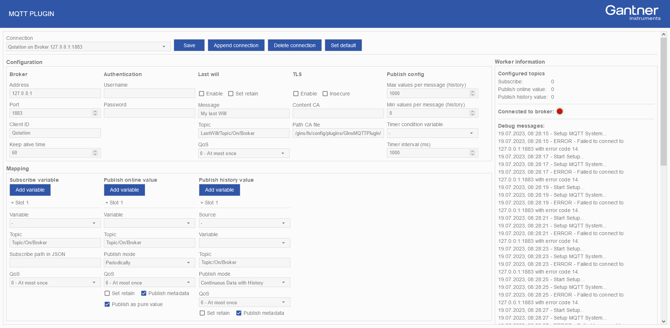
The plugin includes a configuration web interface. To access it, open a web browser and enter the following URL: http://[ipaddress]:8090/GInsMQTTPlugin, where [ipaddress] represents the IP address of the controller.
-
By default, a single connection is preconfigured with default settings. To establish a connection, enter the Address and Port of the MQTT broker, then click Save. The plugin will attempt to connect to the broker. If successful, the 'Connected to broker' indicator will turn green.
Other settings like authentication, TLS, last will, and publishing config are optional settings depending on the application and broker requirements.
To add multiple broker connections, refer to the section Managing connections to an MQTT broker.
👉 Note: The connection is automatically active when the controller starts, there is no manual start or stop option. If you do not want the controller to connect to a broker immediately, it is recommended to leave the Address field blank.
-
Next, configure the data mapping for publishing and/or subscribing. The MQTT plugin reads data for publishing from the circular buffer and writes subscribed data to the controller’s virtual variables (type: Setpoint), which must be created beforehand.
For detailed information on how to configure the mapping, refer to either section Publishing options or Subscribing options. When the mapping has been configured, click Save to apply the settings to the current connection.
Manage multiple MQTT broker connections
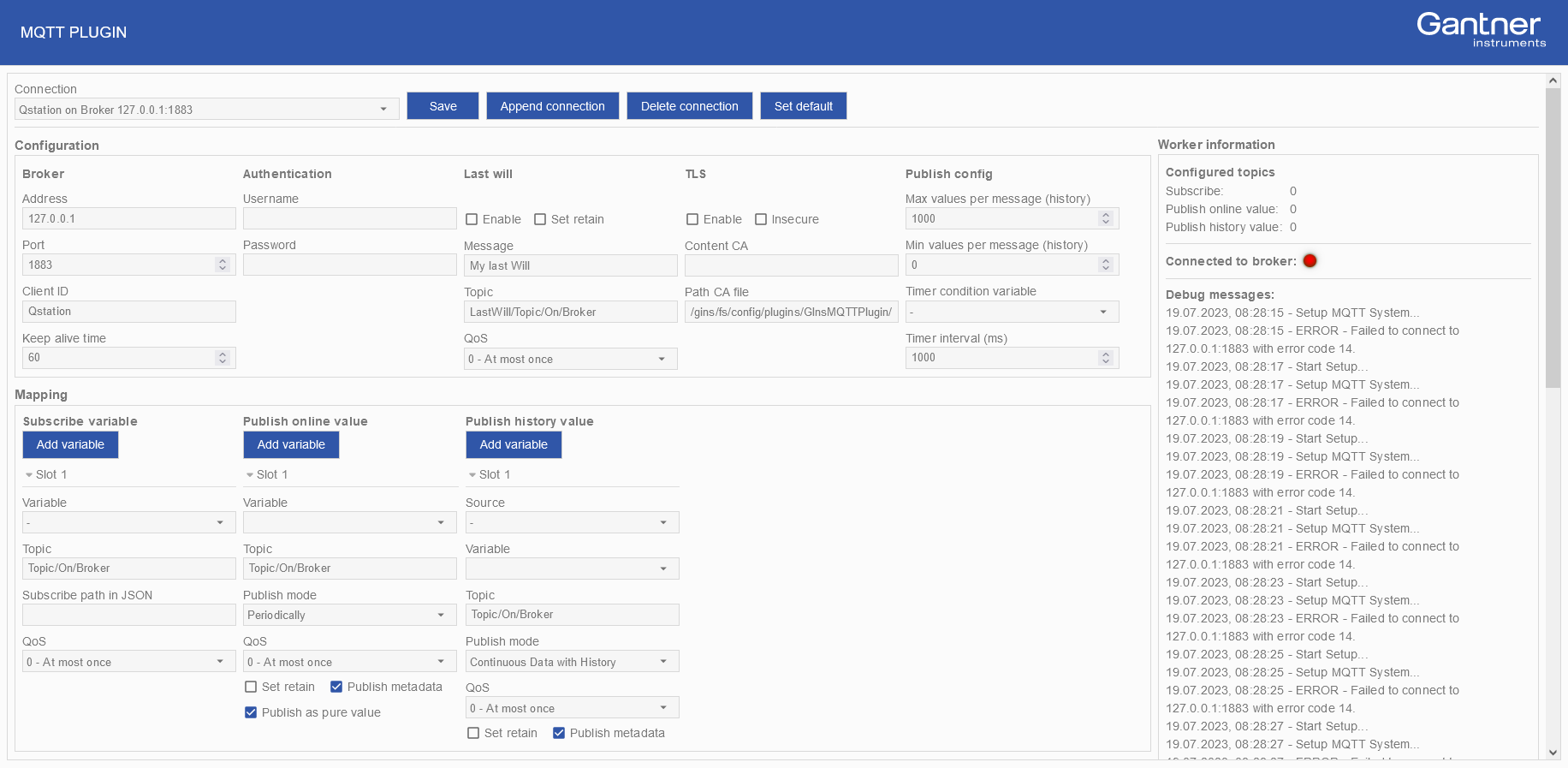
The plugin supports simultaneous communication with multiple MQTT brokers, with each broker connection handled independently. Each broker requires a separate configuration containing the connection parameters, TLS and authentication settings, and variable mappings for publishing and subscribing.
-
Save: Saves the connection and variable mapping configuration for the selected connection.
-
Append Connection: Adds a new connection with default settings to the plugin configuration.
-
Delete Connection: Removes the selected connection from the plugin configuration.
-
Set Default: Resets the entire plugin configuration to its default settings and deletes all configured connections.
Configure an MQTT broker connection
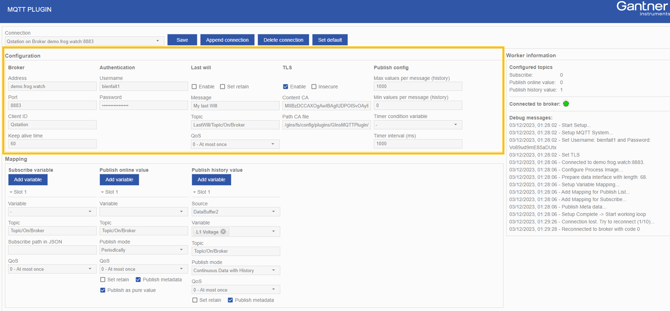
MQTT Broker and Client Settings
- Address: The MQTT broker address, specified as an IP address or hostname.
- Port: The port number used to connect to the MQTT broker. Common ports are 1883 for unencrypted MQTT communication and 8883 for secure MQTT communication using TLS.
- Client ID: A unique identifier for the MQTT client. Each connection requires a distinct Client ID, which enables the broker to identify reconnecting clients and close any existing connections associated with the same ID.
- Keep Alive Time: The Keep Alive interval, in seconds (default: 60 s), defines the maximum period between messages sent by the client to indicate that the connection is still active. If no other MQTT message is transmitted within this interval, the client sends a PINGREQ message. If the broker does not receive a message within 1.5 times the Keep Alive interval, it disconnects the client and, if configured, publishes the client’s Last Will message.
When using a hostname instead of an IP address for the MQTT broker, ensure that a DNS server (for example, 8.8.8.8) is configured in the controller’s network settings so that the hostname can be resolved. See also: configuring a DNS server on the controller.
MQTT Broker Authentication
Username/password authentication allows the MQTT broker to verify the client’s credentials before establishing a connection. This authentication method is optional and must be supported and enabled in the broker’s security configuration.
- Username: Optional username used to authenticate the client with the MQTT broker.
- Password: Optional password used to authenticate the client with the MQTT broker.
MQTT Last Will and Testament (LWT)
The Last Will is an MQTT feature that allows the broker to automatically publish a predefined message if the client disconnects unexpectedly, enabling other clients to detect the connection loss and maintain consistent topic states.
-
Enable: Enables or disables the Last Will feature for the selected connection.
-
Set retain: When enabled, the broker stores the Last Will message and its associated QoS level as the retained message for the topic. New clients subscribing to the topic will immediately receive the retained message.
-
Message: The text that the broker publishes as the controller’s Last Will message if the connection is lost unexpectedly.
-
Topic: The MQTT topic to which the Last Will message is published, allowing subscribers to be notified if the controller disconnects unexpectedly.
-
QoS: The Quality of Service level used when publishing the Last Will message.
For more information about the MQTT Last Will feature and the conditions under which a broker publishes the Last Will message, refer to the HiveMQ article What is MQTT Last Will and Testament (LWT)?
MQTT security with TLS and X.509 certificates
Mutual TLS (mTLS) establishes a secure, encrypted communication channel in which both the controller and the MQTT broker authenticate each other. The broker presents an X.509 server certificate, which the controller validates against a trusted CA certificate. The controller also presents its own X.509 client certificate, which the MQTT broker validates to verify the controller’s identity.
-
Enable: Enables or disables TLS-secured communication for the selected MQTT connection.
-
Insecure: Disables verification of the broker’s hostname against its TLS certificate. This option can be useful for testing and troubleshooting, but should not be used in production environments because it reduces connection security and increases the risk of man-in-the-middle attacks.
-
Content CA: Enter the content of the CA certificate, excluding the
-----BEGIN CERTIFICATE-----and-----END CERTIFICATE-----lines. Alternatively, the CA certificate file can be uploaded directly to the controller via FTP. -
Path CA file: The file path on the controller where the CA certificate is stored. The default path is /gins/fs/firmware/plugins/GInsMQTTPlugin/Certs
For more information about MQTT over TLS, including its benefits and considerations, refer to the HiveMQ article TLS/SSL - MQTT Security Fundamentals.
MQTT Publishing Configuration
Global settings that define how data is published to the MQTT broker.
-
Max Values per Message (History): Defines the maximum number of historical samples included in a single MQTT message when using Publish History Value. This is particularly useful after a temporary broker connection loss, when accumulated historical data must be published after the connection is restored.
-
Min Values per Message (History): Defines the minimum number of historical samples collected before an MQTT message is published when using Publish History Value. Together with the variable sample rate, this determines the effective publishing frequency.
-
Timer Condition Variable: When periodic publishing of online values is enabled, a message is published when the specified variable has a value greater than 0.5.
-
Timer Interval (ms): Defines the time interval, in milliseconds, between MQTT messages when periodic publishing of online values is enabled.
Publish measurement data over MQTT
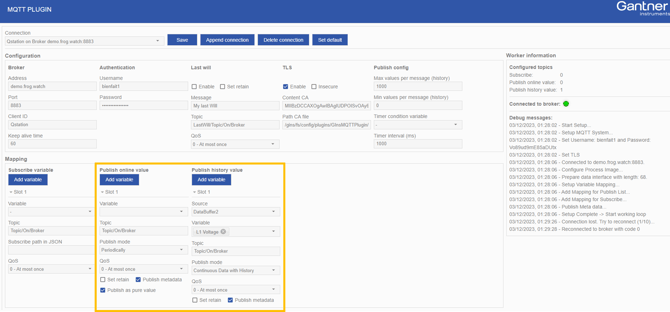
Publishing Real-Time Measurement Data
Using the Publish Online Value option, the latest value of a variable can be published using one of the following modes:
-
Periodically: Publishes messages at fixed intervals defined by Timer Interval (ms), or conditionally when the Timer Condition Variable exceeds the configured threshold.
-
On Change: Publishes a message whenever the value of a configured variable changes.
-
Continuous Data Transfer: Publishes messages as quickly as possible. The achievable publishing rate depends on factors such as the number of variables, network performance, and MQTT broker capacity.
By default, multiple variables are published as a JSON-formatted variable list without a timestamp. If required, a timestamp can be added as a separate variable to the published message.
{
    "VariableName_1":54.014,
    "VariableName_2":42
}
Publishing Historical Measurement Data
Enabling Publish History Value stores measurement data in a buffer on the controller and publishes the buffered data continuously to the MQTT broker. The number of samples included in each message is determined by the variable’s sample rate and the Min. Values per Message (History) setting.
For example, if a variable is sampled at 1 Hz and Min. Values per Message (History) is set to 10, an MQTT message is published every 10 seconds containing 10 samples.
If the MQTT connection is temporarily unavailable, measurement data continues to be stored in the controller buffer. Once the connection is restored, the accumulated data is published in batches, with the maximum number of samples per message determined by the Max. Values per Message (History) setting.
The amount of historical data that can be buffered is limited by the available controller buffer size. The buffer is volatile, meaning that buffered data is lost if the controller is restarted or loses power. For reliable, long-term non-volatile data buffering and storage, GI.cloud is recommended as an alternative.
The message contains the variable data as a JSON-formatted list. Each sample includes a timestamp expressed in nanoseconds since 1 January 2000.
{
"FirstTimestamp":728059579000000136,
"Timestamp":[
  728059579000000136,
  728059579100000139,
  728059579200000135,
  728059579300000129,
  728059579400000144
],
"VirtualVars_1":[ 5, 2, 7, 5, 3 ]
}
On the Q.monixx, historical values cannot be published directly from the circular buffer. Instead, configure an Enhanced Stream as the data source for publishing historical values via MQTT.
MQTT Quality of Service (QoS 0, 1 and 2)
Quality of Service (QoS) defines the level of assurance for MQTT message delivery and can be set from 0 to 2:
-
QoS 0 - At most once: The message is sent once without acknowledgement. Delivery is not guaranteed, and lost messages are not retransmitted.
-
QoS 1 - At least once: The message is delivered at least once. Retransmission may occur if an acknowledgement is not received, which can result in duplicate messages.
-
QoS 2 – Exactly once: The message is delivered exactly once using an additional acknowledgement process. This provides the highest delivery assurance but requires more communication between the client and broker, increasing protocol overhead and potentially latency.
For more information about MQTT Quality of Service and guidance on selecting the appropriate QoS level for your application, refer to the HiveMQ article What is MQTT Quality of Service (QoS) 0, 1, & 2?
MQTT Retained Messages, Metadata and Payload Settings
- Set Retain: When enabled, the broker stores the most recently retained message and its associated QoS level for the topic. New subscribers receive the retained message immediately upon subscribing.
- Publish Metadata: Publishes general variable information as a retained message to Topic/MetaData.
- Publish as Pure Value: Publishes the variable value as plain text instead of a JSON structure. This option is available only when using Publish Online Value.
Receive MQTT values into controller variables
Extracting Values from MQTT JSON Messages
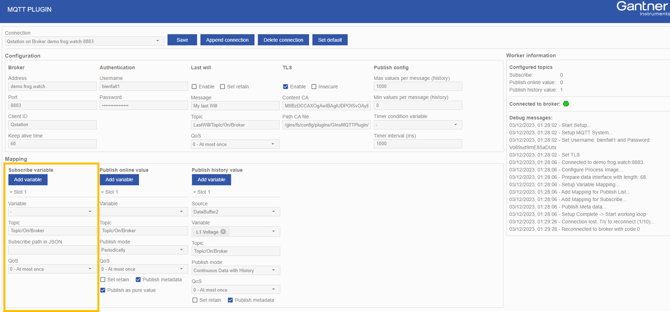
To extract a numeric value from an incoming JSON message, specify the path to the required JSON element. Use “/” to navigate through nested members and “%[0-9]” to select an array element.
Example: Extracting Temperature Values from MQTT JSON Messages
An external MQTT client can publish temperature measurements to a broker for use by a Q.series controller. This example uses a custom payload from a temperature sensor.
MQTT topic: factory/testbench01/temperature
Example payload:
{
  "sensor_id": "temperature_01",
   "timestamp": "2026-10-18T12:30:00.123Z",
   "measurement": {
     "value": 23.75,
     "unit": "°C"
   }
 }
The timestamp identifies the measurement time in Coordinated Universal Time. The Z suffix indicates this time zone, and the three fractional digits represent milliseconds.
Configure the Subscription Mapping
Create a virtual variable of type Setpoint on the controller before configuring the subscription. Use the following example mapping:
| Setting | Example |
|---|---|
| Subscription topic | factory/testbench01/temperature |
| JSON extraction path | measurement/value |
| Destination variable | External_Temperature |
| Destination variable type | Setpoint |
| Engineering unit | °C |
| Expected received value | 23.75 |
The extraction path uses / to navigate nested JSON members. After saving the mapping, publish the example message and verify that External_Temperature updates to 23.75.
The mapping extracts only the numeric measurement. Configure the destination unit separately: the payload’s unit field does not perform a unit conversion. The timestamp remains contextual information in this example; it is not mapped to the Setpoint variable.
Handle Timestamp Precision in JavaScript
The timestamp format above is suitable for JavaScript applications requiring millisecond resolution:
const message = JSON.parse(payload);
const measurementTime = new Date(message.timestamp);

console.log(measurementTime.toISOString());
// 2026-10-18T12:30:00.123Z
For applications requiring nanosecond timestamps, distinguish this custom subscription payload from GInsMQTTPlugin historical publishing. The plugin’s documented historical format uses numeric timestamps expressed in nanoseconds since 1 January 2000.
JavaScript’s Number type cannot represent every integer above 9,007,199,254,740,991 exactly. Contemporary nanosecond timestamps exceed this limit, so ordinary JSON.parse() can round their values. Converting the rounded result to BigInt afterwards cannot recover the lost precision.
To preserve exact timestamps:
- For a payload you control, transmit nanosecond timestamps as decimal strings and convert those strings directly to BigInt.
- For the plugin’s numeric historical payload, use a lossless JSON parser that preserves large integer tokens as strings or arbitrary-precision integers.
- Keep the original nanosecond value for calculations and storage. Convert to milliseconds only when creating a JavaScript Date for display.
For example, after preserving a historical timestamp as a decimal string:
// Historical timestamp preserved as text by a lossless parser.
const timestampText = "728059579000000136";
const nanosecondsSince2000 = BigInt(timestampText);

// Convert to Unix milliseconds for display.
// Integer division discards the sub-millisecond remainder.
const unixMilliseconds = nanosecondsSince2000 / 1000000n + 946684800000n;

const displayTime = new Date(Number(unixMilliseconds));
A timestamp expressed in nanoseconds specifies its representation; it does not establish the measurement system’s timing accuracy or clock synchronisation.
Frequently asked questions
Can GInsMQTTPlugin publish data to multiple MQTT brokers?
Yes. Configure each broker connection independently.
What happens to historical data during a connection interruption?
Data is buffered within available capacity and transferred after reconnection. Restarting the controller or losing power clears the volatile buffer.
Can incoming MQTT messages update controller variables?
Yes. Map received numeric values to predefined Setpoint variables.
Does Quality of Service level 2 guarantee complete measurement records?
No. It provides exactly-once delivery for an MQTT sender–receiver exchange. Complete records also depend on acquisition, buffering, session handling and downstream storage.
Why are historical values not being published from Q.monixx?
Q.monixx requires an Enhanced Stream as the source for historical MQTT publishing; historical values cannot be published directly from its circular buffer.