![favicon_GI.png]](https://knowledge.gantner-instruments.com/hs-fs/hubfs/favicon_GI.png?width=40&height=40&name=favicon_GI.png)
- Configuring the controller network address
- Configuring a DNS server on the controller
- Configuring the Windows Defender Firewall
Configuring the controller network address
When delivered, the controller has DHCP enabled by default. To configure a static IP address, follow the steps below:
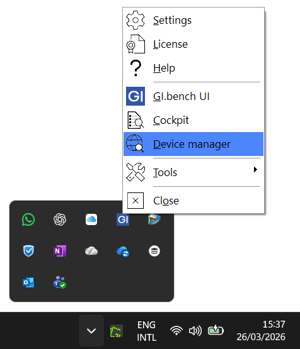
- Start GI.bench and open the Device Manager via the GI.service menu in the Windows system tray.
-
The Device Manager initiates a network scan to discover available controllers. It performs an IPv6 multicast scan, enabling detection of devices outside the local IPv4 subnet. Ensure that IPv6 is enabled on the host system.
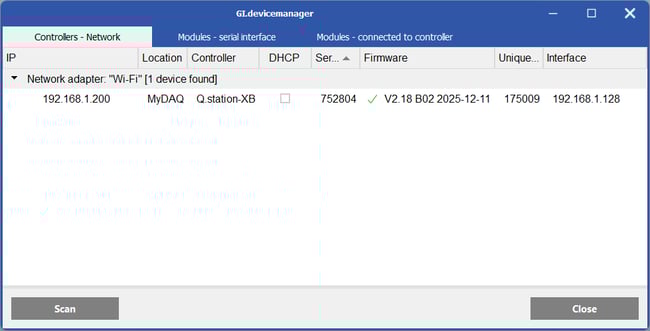
-
Right-click on the controller and select Network Settings...
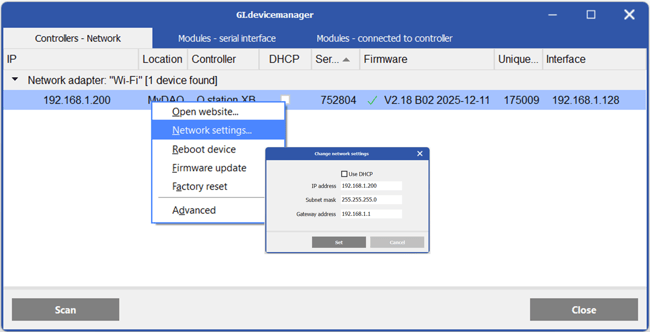
- Enter the IP address, subnet mask, and optionally the default gateway address, then click Set to apply the new network settings to the controller.
-
IP address - unique identifier of a device on a network (e.g. 192.168.1.18).
-
Subnet mask - defines the network and host portion of the IP address, determining the local subnet (e.g. 255.255.255.0).
-
Gateway address - IP address of the router used to reach devices outside the local subnet.
-
If the controller is not detected in the Device Manager, the network scan is most likely being blocked by the firewall.
Configuring a DNS server on the controller
When configuring communication with a data server (e.g. via MQTT, OPC UA, or FTP) using a domain name, a public or private DNS server must be configured on the controller to resolve the domain name into an IP address.
-
Open GI.bench and read the controller configuration into GI.bench. Navigate to Controller Settings > Network.
-
Click the Append item button under ETH #1 DNS Address, then enter the IP address of the preferred DNS server (e.g. Google Public DNS: 8.8.8.8) in the input field.
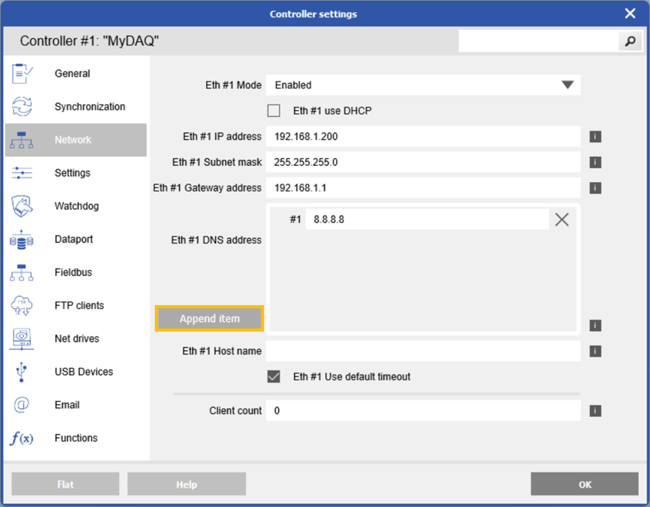
- Click OK, then write the configuration back to the controller to apply the DNS server settings.
A reliable DNS server is essential for fast and uninterrupted connectivity to remote data servers. Configuring multiple DNS servers ensures redundancy. To find reliable DNS servers for your region, refer to the Public DNS Server List.
Configuring the Windows Defender Firewall
To perform read/write operations on a Q.series controller via Ethernet, using either GI.bench or a third-party application, the firewall on the host PC must allow this communication.
Disable the Windows Defender Firewall
For quick testing during installation and commissioning, it may be useful to temporarily disable the Windows Defender Firewall.
To access Windows Defender Firewall, open the Control Panel and navigate to System and Security > Windows Defender Firewall. You can then disable the firewall for the applicable network profile, typically the Public network unless configured otherwise.
Adding exceptions to the Windows Defender Firewall
To keep Windows Defender Firewall enabled, exceptions can be configured for the GI.bench services required for controller communication.
Normally, when running GI.bench for the first time, you will be prompted to allow it through the firewall by adding the required exceptions. If not, open the Control Panel and navigate to System and Security > Windows Defender Firewall, then manually allow the variois GI.bench applications through the firewall for the applicable network profile (typically the Public network, unless configured otherwise).
List of GI.bench applications requiring firewall access:
| giacontisfoe (optional) giapps gibenchui gicom giconfig gidashboard |
gidata gidevicemanager gikpafoe (optional) gimonitor gireportserver |
giservice giserviceui gisystem gitwincatfoe (optional) webui |
Port forwarding for remote access
Port forwarding is a networking technique that enables direct remote access to a controller within a private local network, such as an office network. It works by mapping a public port on the router to a private IP address and port, allowing external traffic to reach the device behind the firewall.
To configure port forwarding for remote management of the Q.monixx, the following TCP ports must be opened on the router:
-
Port 1200 (configuration interface)
-
Port 8001 (data interface)
-
Port 8090 (device web interface)
-
Port 22 (SSH root access for troubleshooting)