![favicon_GI.png]](https://knowledge.gantner-instruments.com/hs-fs/hubfs/favicon_GI.png?width=40&height=40&name=favicon_GI.png)
A snapshot logger in GI.bench uses event-based data logging to capture selected measurement values when a defined trigger occurs. Set the Event Length to one dataset to record one sample per event. Snapshots can be triggered automatically by a measurement variable or manually using a GI.bench dashboard button.
🔖Configure a Snapshot Logger Using a Trigger Variable
🔖Configure a Snapshot Logger Using a GI.bench Dashboard Button
🔖Peak-Valley Snapshot Logging for Aerospace Fatigue Testing
Before diving into the snapshot logger setup, it is helpful to understand the broader types of data loggers. For a full overview of Continuous, Triggered, and Event-Based logging, check out our guide on configuring data loggers for test and measurement applications. This will give you a full context for how snapshot logging fits in!
Configure a Snapshot Logger Using a Trigger Variable
| Setting | Value |
|---|---|
| Logger Type | Event-based |
| Event Length | 1 dataset |
| File Length | Desired events per file |
| Trigger | Event Trigger |
| Mode | Single Slope |
| Init State | Enabled |
| Output | UDBF or CSV |
-
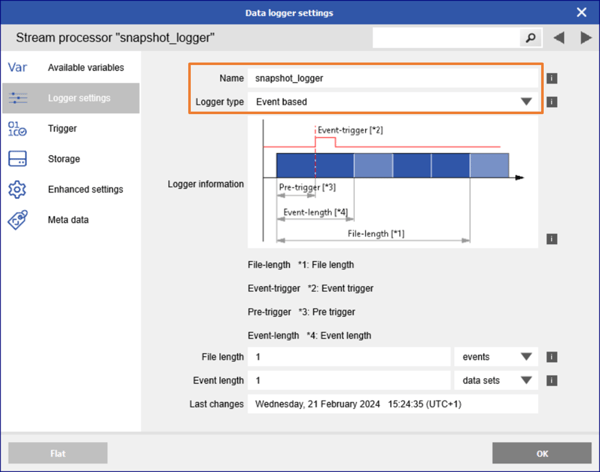
Create a new logger on the controller or within the GI.bench project. Select the variables to include in the logger, assign a unique name, and choose Event-based from the Logger type drop-down list.
-
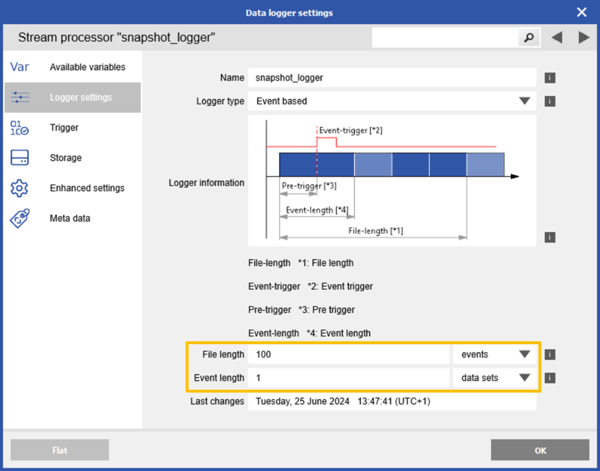
Set the Event Length to 1 dataset. This means that for each event, one sample of all selected variables will be added to the data file.
Set the File Length to the number of events to be included in a single data file. For example, if the File Length is set to 100 events, then 100 samples per variable will be stored in one data file. Once 100 events have occurred, a new data file will be created for the next 100 events.
-
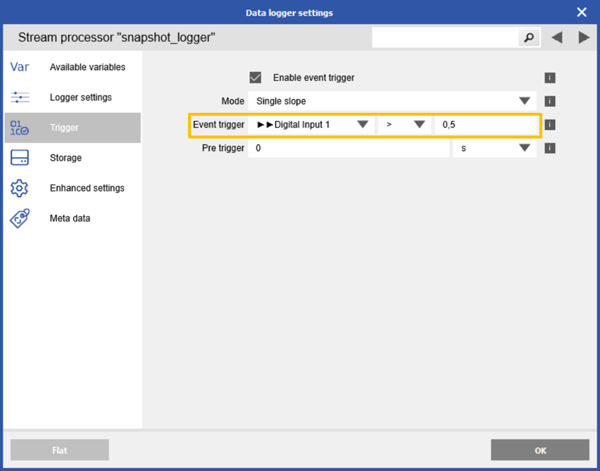
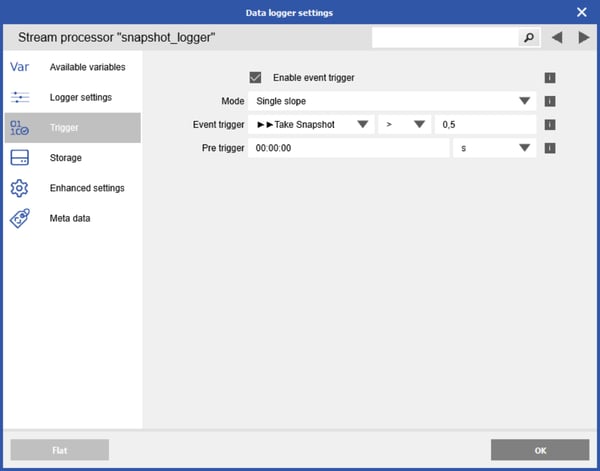
In the Trigger tab, set up an Event Trigger function, for example, when a digital input variable > 0.5. Leave the Mode set to Single Slope. This ensures that the variable must reset to 0 before the trigger condition can be re-enabled.
-
In the Storage tab, select the desired file format for the data file, such as binary UDBF or CSV. By default, logger files are saved in:
C:\Users\Public\Documents\Gantner Instruments\GI.bench\data\records. -
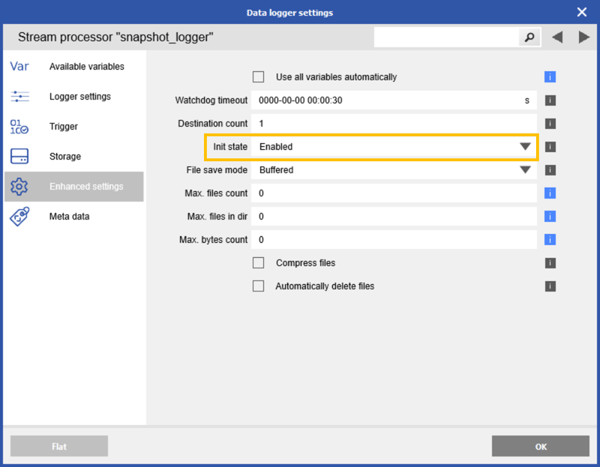
In the Enhanced Settings, set Init State to Enabled. This ensures that the logger is automatically activated when data acquisition starts, requiring no manual action.
-
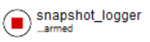
Save the GI.bench project and switch to the Data Acquisition tab to activate the snapshot logger. The snapshot logger status will show "armed", indicating that it is ready to receive a trigger to take a snapshot.
If you have completed your measurement but the latest logger file has not reached the specified file length (e.g., 100 datasets), it remains a temporary file. To close the temporary file, manually stop the logger.
Configure a Snapshot Logger Using a GI.bench Dashboard Button
-
Add a virtual setpoint variable on the controller. Give the variable a name and write the configuration to the controller. Ensure that this setpoint variable is included in the project's system stream.
-
Follow the steps explained in the above section to create an event-based logger. Use the virtual setpoint variable as the event trigger. Since we will use this setpoint variable as a on/off switch (Boolean), set the trigger condition to > 0.5.
-
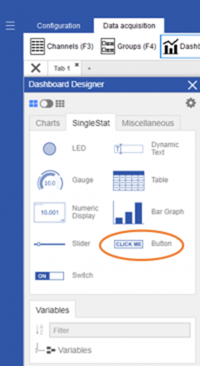
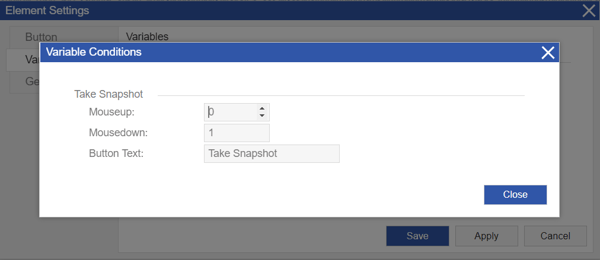
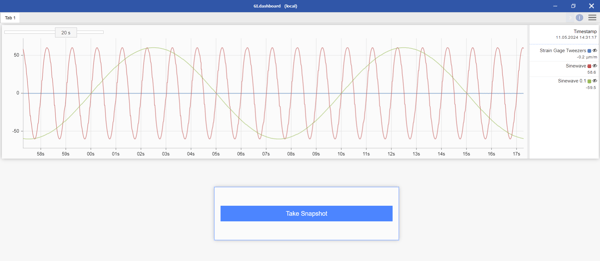
In the dashboard, add a Button (SingleStat element) and assign the virtual setpoint variable to the button. In the variable conditions settings, ensure that Mouseup is set to 0 and Mousedown is set to 1. Optionally, enter text to display on the button.
-
Each time you press the button, the virtual variable changes to 1, triggering the addition of a new dataset (snapshot) to the logger file.
Peak-Valley Snapshot Logging for Aerospace Fatigue Testing
How Peak-Valley Snapshot Logging Works
Snapshot logging, also known as peak-valley logging, is a data reduction technique commonly used in aerospace fatigue and endurance testing. It condenses time history data into a sequence of peak (tensile) and valley (compressive) data points, reducing the amount of stored data while preserving essential information.
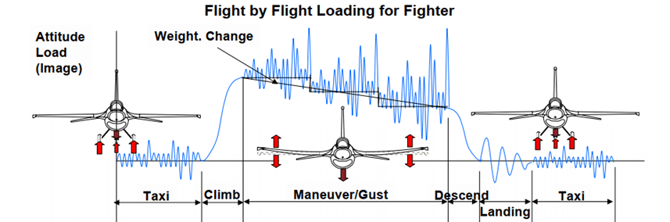
Using the Ethernet communication interface between the Q.series DAQ system and the Moog Aerospace Test Controller, peak-valley data logging can be configured in GI.bench.
The Moog Aerospace Test Controller can send a STEP% variable over Ethernet to the Q.station controller. The STEP% variable ramps from 0% to 100% for each instruction step of the loading spectrum. When the instruction step reaches its endpoint, the STEP% variable equals 100%. In other words, the STEP% variable reaches 100% at each peak or valley of the loading spectrum.
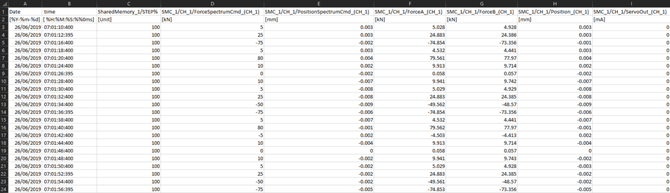
Using an event-based logger in GI.bench, a snapshot can be written to the file each time the STEP% variable reaches 100%.
Configure the Event-Based Logger for a Moog Test Controller
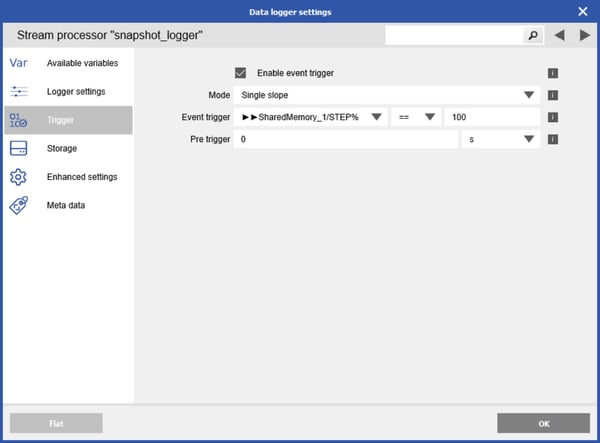
Follow the steps explained in the Snapshot logger with a trigger variable section to create an event-based logger. Use the Shared Memory channel from the Moog system that contains the STEP% variable as the event trigger. Set the trigger condition to == 100.
Example Peak-Valley Data File in CSV Format
Frequently Asked Questions About Snapshot Logging in GI.bench
What is a snapshot logger in GI.bench?
A snapshot logger is an event-based data logger configured to record selected measurement values when a defined trigger event occurs. Setting the Event Length to one dataset records one sample of each selected variable for every trigger event.
How do I trigger a snapshot logger in GI.bench?
Configure an Event Trigger in the logger's Trigger settings using a measurement variable, digital input, virtual setpoint or other suitable variable. Define the trigger condition, such as a digital input value greater than 0.5, and arm the logger so it waits for the event.
Can I trigger a snapshot manually from a GI.bench dashboard?
Yes. Create a virtual setpoint variable and use it as the event trigger. Assign that variable to a GI.bench dashboard button, with the button changing the value between 0 and 1. Pressing the button then generates a new snapshot.
What is peak-valley snapshot logging?
Peak-valley logging records selected measurement data at load peaks and valleys rather than storing the complete time history. In the article's aerospace example, a Moog controller's STEP% signal reaches 100% at each peak or valley and is used to trigger the event-based logger.
Why does my snapshot logger file remain temporary?
If the current file has not yet reached its configured File Length, GI.bench keeps it as a temporary file. When the measurement is complete, manually stop the logger to close the current file.