![favicon_GI.png]](https://knowledge.gantner-instruments.com/hs-fs/hubfs/favicon_GI.png?width=40&height=40&name=favicon_GI.png)
How USB Data Retrieval Works on a Standalone Gantner DAQ System
A standalone data acquisition system may operate at a location where no computer or permanent network connection is available. In this configuration, measurement data is stored continuously on SD card installed in the controller.
To retrieve the recorded data, a USB flash drive can be temporarily connected to the controller. The controller automatically copies logger files that have not previously been transferred to the USB flash drive. Logging to the SD card continues during the copy process.
This provides a convenient method for collecting measurement data from autonomous or remotely installed systems without connecting a computer to the controller.
How Automatic SD Card-to-USB Data Transfer Works
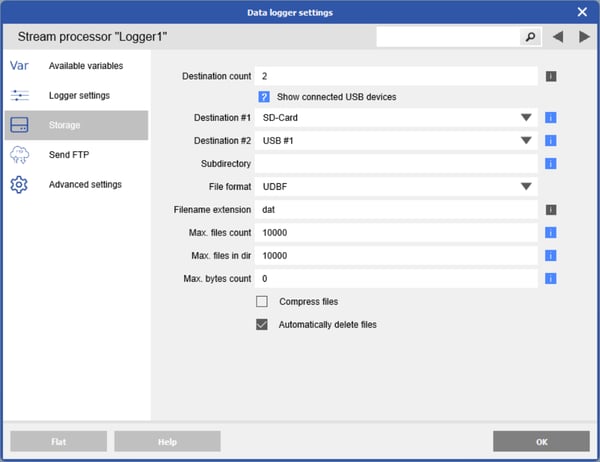
The SD card is configured as the primary storage destination, while the USB port is configured as the secondary storage destination.
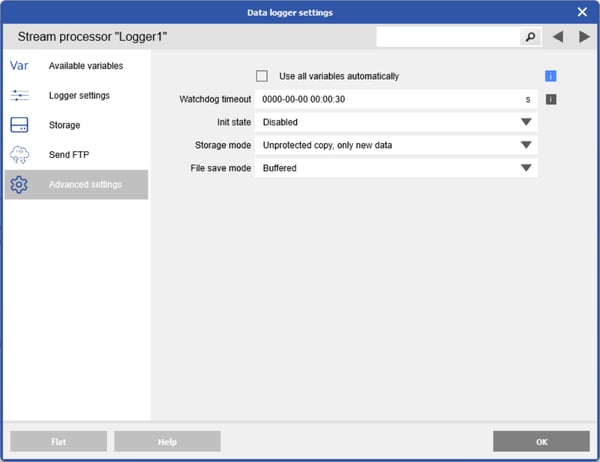
When Unprotected copy, only new data is selected as the storage mode:
- Logger files are written to the SD card.
- Connecting a USB flash drive starts the copy process automatically.
- Only files that have not previously been copied are transferred.
- The original files remain on the SD card.
- Data logging continues on the SD card while files are copied.
- During subsequent visits, only newly created logger files are transferred.
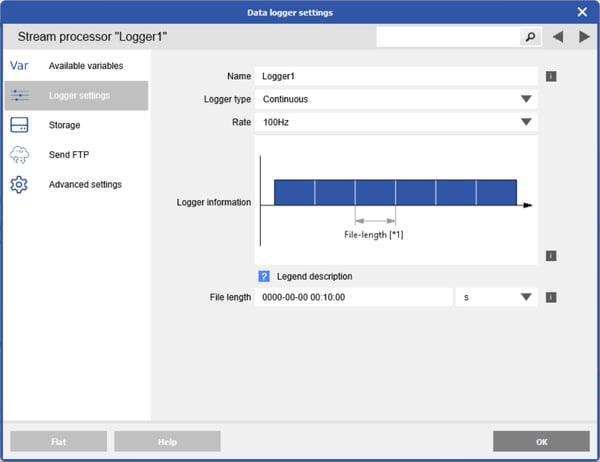
The currently active logger file may remain open and might not be copied until it has been completed. Configure a suitable logger file length so that files are closed regularly and become available for transfer.
How to Configure SD Card Logging and USB Data Retrieval
-
Create a data logger on the controller and configure the logger settings according to your application requirements.
-
Navigate to the Storage settings, set Destination Count to 2, and select SD card and USB #1 as the storage destinations.
-
Go to Advanced settings and set Storage Mode to Unprotected copy, only new data.
-
Write the configuration changes to the controller.
How to Retrieve Logged Measurement Data Using a USB Flash Drive
- Insert a compatible USB flash drive into the configured USB port.
- The controller detects the drive and begins copying logger files that have not previously been transferred.
- LEDs A and B on the controller will blink rapidly in blue, indicating that writing to the initial USB drive is still in progress.
- Wait until the controller indicates that the copying process has finished.
- Safely remove the USB flash drive.
- Connect the USB flash drive to a computer and copy the retrieved logger files to the required location.
Do not remove the USB flash drive while data is being copied. Doing so may result in incomplete or corrupted files.
How to Retrieve Only New Logger Files on Subsequent Visits
The same USB flash drive can be connected again during a later service visit. The controller will copy only logger files created since the previous transfer.
This allows the SD card to remain permanently installed as the primary storage medium while the USB flash drive is used as a portable data carrier.
Managing SD Card Storage for Continuous DAQ Logging
Because copied files remain on the SD card, sufficient storage capacity must be maintained for continuous operation.
Depending on the application, configure one or more of the following logger settings:
- Maximum file count
- Maximum storage size
- Automatic deletion of the oldest files
- Suitable file length
- File compression
When automatic deletion is enabled, the controller can use the SD card as a ring buffer by deleting the oldest files when the configured storage limit is reached.
Example: Retrieving Data from a Remote Structural Health Monitoring System
A Gantnr data acquisisiton system is installed at a remote structural monitoring site. The system continuously records strain, temperature and vibration data to its SD card.
During a maintenance visit, the operator inserts a USB flash drive into the controller. All logger files created since the previous visit are copied automatically. The operator waits for the transfer to finish, removes the USB drive and takes it back to the office for analysis.
No computer, network connection or change to the running measurement configuration is required at the installation site.
Frequently Asked Questions About SD Card and USB Data Retrieval
Can I retrieve Q.series logger files without stopping data acquisition?
Yes. The Q.series controller can continue logging measurement data to the SD card while previously untransferred logger files are copied to the connected USB flash drive.
Does the Q.series controller copy all SD card files to the USB drive every time?
No. When Unprotected copy, only new data is configured, the controller transfers only logger files that have not previously been copied. On subsequent service visits, only newly created files are transferred.
Why is the latest DAQ logger file not copied to the USB flash drive?
The currently active logger file may still be open and therefore may not be available for copying. Configure an appropriate logger file length so files are closed regularly and become available for transfer.
Can the SD card remain permanently installed in the Q.series controller?
Yes. The SD card can remain installed as the primary storage medium while a USB flash drive is temporarily connected whenever measurement data needs to be collected.
What happens when the SD card becomes full?
Storage limits and automatic deletion can be configured so the controller deletes the oldest logger files when the defined limit is reached, allowing the SD card to operate as a ring buffer.