![favicon_GI.png]](https://knowledge.gantner-instruments.com/hs-fs/hubfs/favicon_GI.png?width=40&height=40&name=favicon_GI.png)
Plugin installation
Preparation before OPC UA client configuration
OPC UA client configuration
Connect to plugin
Connect to OPC UA server
Configuring OPC UA subscriptions
Starting data exchange
Plugin installation
Download the plugin that matches your controller firmware version from the Gantner Controller Firmware Page by selecting your controller model, choosing the currently installed firmware version, and downloading the required plugin from the Plugins folder.
For installation instructions please refer to the page: installing a plugin.
Preparation before OPC UA client configuration
-
The OPC UA Client plugin maps OPC UA nodes to virtual variables on the controller. These virtual variables must be created before configuring the plugin, as the plugin automatically detects the available variables during configuration. Configure the virtual variables as Setpoint and set the Data Direction to Input/Output.
-
If the NodeIds are not known, use a full-featured OPC UA client, such as UaExpert, to browse the server address space and retrieve the complete NodeIds of the nodes to be mapped to the controller’s virtual variables. Include the Namespace Index and Identifier Type using the format NS<namespace index>|<identifier type>|<identifier>, for example: NS1|String|W3HBK10CP001 or NS3|Numeric|1003.
OPC UA client configuration
The plugin provides a uniform XML-RPC configuration interface that can be accessed via Ethernet using GI.monitor (included in the GI.bench software package). All configuration parameters are stored in an XML file, which is loaded when the controller starts.
For configuring a large number of NodeId subscriptions, Gantner Instruments can provide an OPC UA client configuration tool. Please contact your local Gantner Instruments support representative for assistance.
Connect to plugin
-
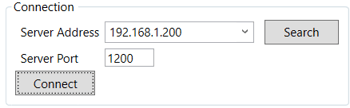
Start GI.monitor from the GI.service menu in the system tray (Tools → GI.monitor). To connect to the plugin, enter the Server Address (the controller’s IP address), set the Server Port to 1200, and click Connect.
-
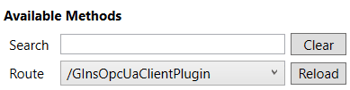
Next to the Route drop-down list, click Reload, then select /GinsOpcUaClientPlugin.
Connect to OPC UA server
-
[If your setup relies solely on IP addressing, this step can be skipped]
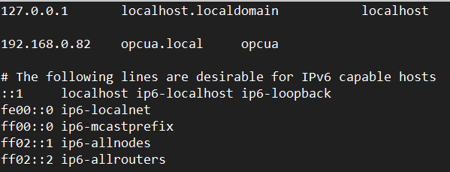
For hostname resolution of an OPC UA server running on a local network, the hostname and IP address must be added to the hosts file on the Q.station controller. This requires a password-protected connection to the Linux OS via SSH. Please contact your local Gantner Instruments support representative or submit a support ticket for further instructions.
-
Select AddServer under GinsOpcUaClientPlugin/PluginAPI to create a connection to an OPC UA server. Enter the Server URL (Endpoint URL) and select the Security Mode, which determines the level of protection applied to communication between the OPC UA client and server. Click Send to apply and save the settings.
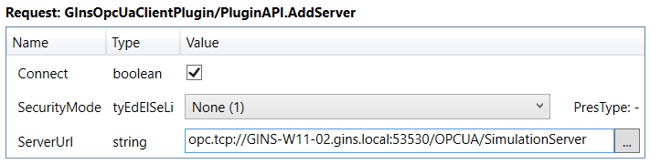
When using an OPC UA security mode with signing, certificates are exchanged automatically during connection setup. The Q.station stores the server certificate in its trust list. The server must trust the Q.station client certificate by adding it to its trusted certificates store, otherwise the connection will be rejected.
To retrieve the Q.station client certificate, connect via FTP (username: 0, password: 0), navigate to /pki/own/certs, and download the file (e.g. qstation-<serialnumber>.der). The certificate uses SHA-256.
To identify existing server configurations in the plugin, use the GetServer method, or use DiscoverServer to retrieve the properties of a connected OPC UA server.
Configuring OPC UA subscriptions
-
Select ConfigureSubscription under GinsOpcUaClientPlugin/PluginAPI to map an OPC UA NodeId (monitored item) to a controller virtual variable.
-
Specify the NodeId in the format NS<namespace index>|<identifier type>|<identifier>, for example: NS1|String|W3HBK10CP001 or NS3|Numeric|1003.
- In the Variable field, enter the name of the controller virtual variable to which the monitored item will be mapped. Ensure that the virtual variables are configured as Setpoints and that the Data Direction is set to Input/Output.

-
To add multiple subscriptions, click the + symbol next to Assignment to create additional entries.
-
To add subscriptions to an existing configuration, enable AddToExistingAssignments.
-
Click Send to apply and save the settings.
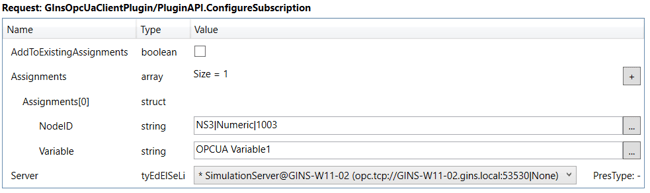
To identify existing subscriptions configured in the plugin, use the GetConfiguration method.
Starting data exchange
-
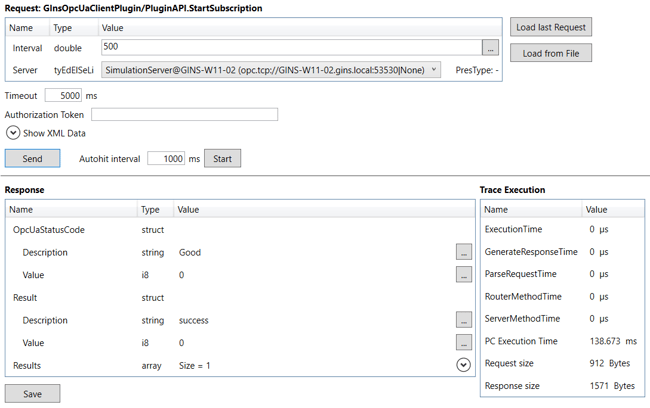
Start data exchange using the StartSubscription method under GinsOpcUaClientPlugin/PluginAPI. Select the OPC UA server to connect to and set the subscribe interval using the Interval parameter (in milliseconds).
-
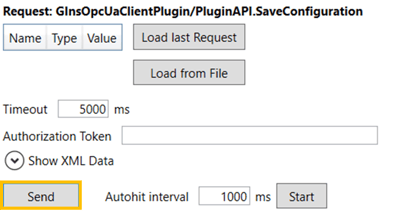
Save the configuration by clicking Send in the SaveConfiguration method. If the configuration is not saved, it will be lost after restarting the Q.station controller.