![favicon_GI.png]](https://knowledge.gantner-instruments.com/hs-fs/hubfs/favicon_GI.png?width=40&height=40&name=favicon_GI.png)
The Gantner IPEmotion PlugIn connects Gantner DAQ controllers to IPEmotion for measurement data acquisition, visualization and storage. First configure measurement channels and hardware settings in GI.bench. Then activate the PlugIn in IPEmotion, detect or manually add the Gantner controller, synchronize its channel configuration, and start displaying live measurement data.
Download IPEmotion
IPEmotion can be downloaded as 30 days trial version from the IPETRONIK website.
Install the Gantner Instruments IPEmotion PlugIn
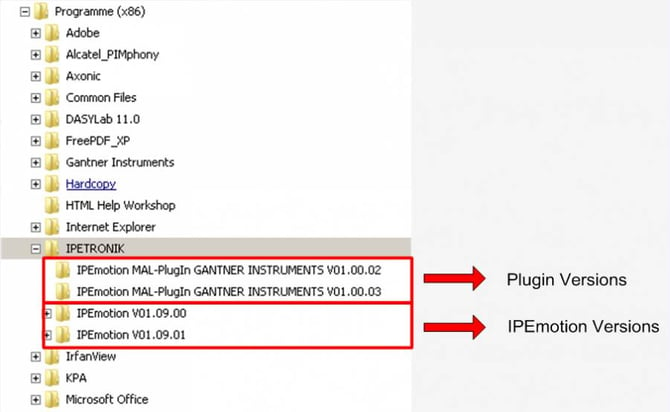
Different versions of IPEmotion and its plugins can be installed in parallel on the same system. The plugins only need to be installed once and can be used by all installed IPEmotion versions.
The default installation path is: c:\Program Files\IPETRONIK
Configure Your Gantner DAQ Hardware Before Using IPEmotion
IPEmotion is used to control data acquisition, display and store measurement data, create virtual (calculated) channels, analyse measurement results, and generate reports.
Before using IPEmotion, the measurement hardware must first be configured using GI.bench. This includes:
-
Channel names and measurement types
-
Scaling, including sensor and physical measurement ranges
-
System sample rate
-
Other hardware-specific measurement settings
When configuring the system, always observe the applicable system design rules and physical limits. GI.bench guides you through these requirements during configuration. System performance and the resulting data rates should also be considered when selecting the channel configuration and sample rates.
Select and Activate the Gantner IPEmotion PlugIn Version
After installing IPEmotion and the Gantner Instruments PlugIn, IPEmotion highlights the newly installed plugin when the software is started for the first time after installation:
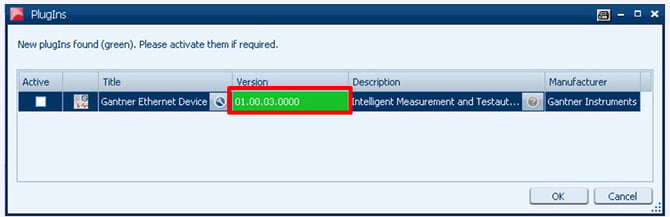
→ The plugin has to be activated (checkbox) before first use.
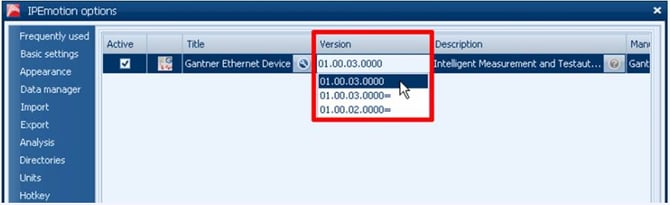
If there are multiple plugin versions installed, you can select which version is used by IPEmotion.
Set Up a Gantner DAQ System in IPEmotion
Detect Gantner controller automatically (take care to first use GI.bench for channel configuration)
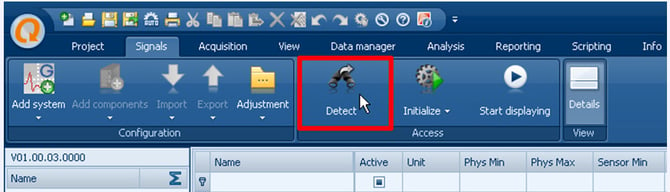
The Network Scanner window will open (UDP broadcast scan) and display all available controller:
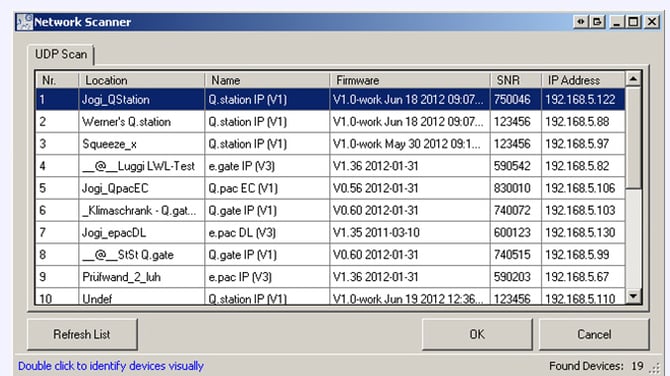
Select one (or multiple controller using ctrl-button) and click “OK” → Controller channel setup will be uploaded to IPEmotion.
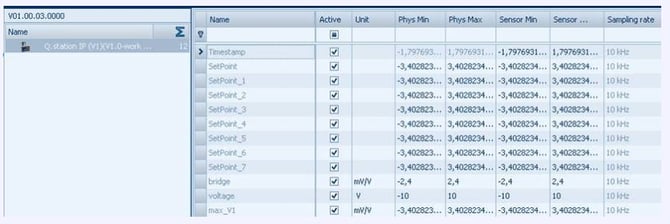
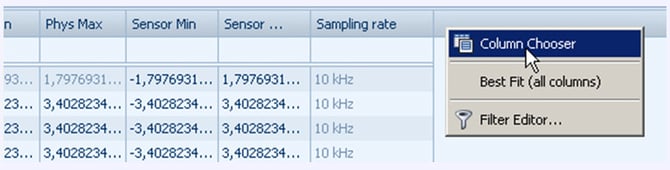
Additional Columns can be added for more information. For example: Module UART, Module Address, Module Type, Variable Type…
The column settings will be saved automatically for the next use of IPEmotion.
Add Another Gantner Controller to an Existing IPEmotion Project
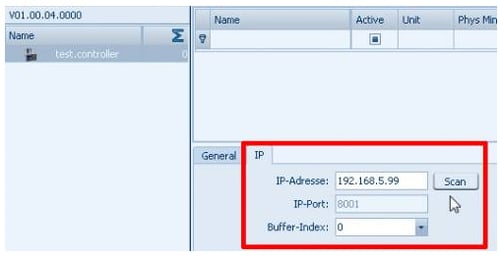
If you want to add an additional controller to your existing IPEmotion project, you have to pass through the following steps:
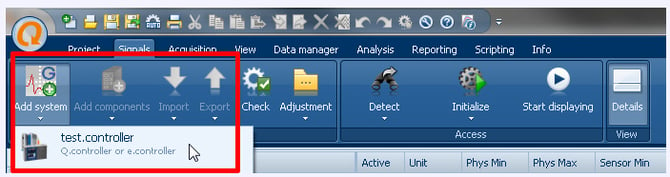
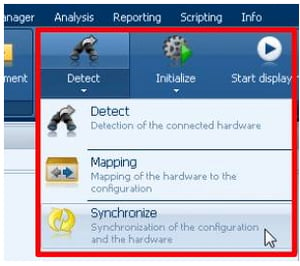
Click on “Synchronize” to upload the channel setup out of the controller.
Start Displaying Live Measurement Data in IPEmotion
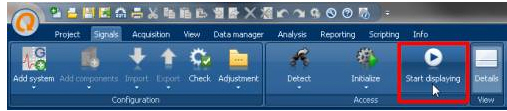
After the project configuration is finished, the online values can be viewed with the button “Start displaying”.
Frequently Asked Questions About the Gantner IPEmotion PlugIn
What does the Gantner Instruments IPEmotion PlugIn do?
The Gantner IPEmotion PlugIn enables IPEmotion to access configured Gantner DAQ controllers and their measurement channels. Engineers can use IPEmotion to acquire, display and store measurement data, create calculated channels, analyze data, and generate reports.
Do I need to configure the Gantner DAQ hardware before using IPEmotion?
Yes. The current workflow requires the Gantner hardware to be configured in GI.bench before it is used with IPEmotion. This includes channel names and types, sensor and physical scaling ranges, and the system sample rate.
How does IPEmotion find a Gantner controller on the network?
During project setup, IPEmotion can scan the network for available Gantner controllers using a UDP broadcast scan. Select the required controller to import its configured channel setup into IPEmotion.
Can I add multiple Gantner controllers to an IPEmotion project?
Yes. Multiple controllers can be selected during discovery, and an additional controller can also be added to an existing project using Add System -> test.controller. You can enter its IP address manually or use the network scan.
How do I display live Gantner measurement values in IPEmotion?
Complete the controller and project configuration, synchronize the controller's channel setup with IPEmotion, and then select Start displaying to view the online measurement values.