![favicon_GI.png]](https://knowledge.gantner-instruments.com/hs-fs/hubfs/favicon_GI.png?width=40&height=40&name=favicon_GI.png)
Gantner Instruments Q.series controllers can automatically transfer logged measurement files to remote FTP or SFTP servers for centralised storage, analysis and remote monitoring. Connections and file-transfer settings are configured in GI.bench. Use FTP only on trusted, isolated networks; choose SFTP when data crosses untrusted networks because it encrypts credentials and measurement files.
What Is FTP (File Transfer Protocol)?
FTP (File Transfer Protocol) is a standard network protocol for transferring files reliably and efficiently between computers over TCP. Defined in RFC 959, it uses separate control and data connections, enabling users or applications to upload, download, rename, delete and organise files on remote systems despite differences between their local file-storage environments.
How Is FTP Used for Data Acquisition and Remote Monitoring?
FTP, SFTP, and FTPS are file transfer protocols used in data acquisition and remote monitoring to transfer measurement files from remote DAQ systems to central storage. They enable automated data transfer for long-term monitoring and analysis but differ in encryption, security, network configuration, and deployment complexity. Selecting the appropriate protocol depends on application and cybersecurity requirements.
FTP vs SFTP vs FTPS for DAQ
FTP is widely supported and simple to configure, but sends credentials and data without encryption, limiting its use to isolated networks. SFTP encrypts the entire transfer through SSH, supports secure authentication and normally requires only one network port. However, some legacy DAQ devices may not support it.
FTPS adds TLS encryption to FTP and works with established FTP infrastructure, but certificate management and separate data connections can complicate configuration. For most remote monitoring applications, SFTP offers the best balance of security and usability.
How to Configure FTP or SFTP on a Q.series Controller
The most commonly used file transfer protocols are FTP, FTPS, and SFTP. Q.series controllers support FTP and SFTP, while FTPS is not supported.
-
Open an existing GI.bench project or read the current controller configuration into a new project. Then, double-click the controller to open the controller settings.
-
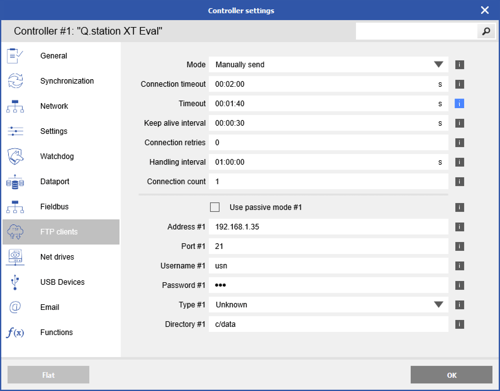
Navigate to the FTP Clients section, set the connection count to 1, and press Enter.
-
Modify the connection settings to match the FTP server configuration:
-
Address: The IP address or hostname of the FTP server.
Note: When using a hostname instead of an IP address, ensure that a DNS address (e.g., 8.8.8.8) is configured in the controller’s network settings. -
Port: The FTP server's listening port (typically 21; vary depending on server settings)
-
Username: The user account configured on the FTP server
-
Password: The password for the user account
-
Type: Set to Unknown (other options include Unix, MS-DOS, SFTP)
-
Directory: Specify the target directory on the server, or leave blank to use the root directory
-
-
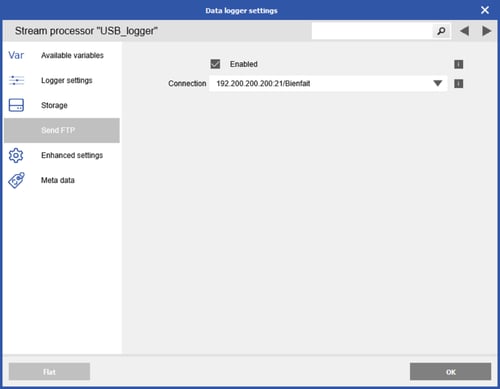
On the controller, open the data logger and go to the Send FTP section. Check the Enabled box and select the appropriate FTP connection.
- Write the updated configuration to the controller to enable FTP functionality.
How to Set Up an FTP Server for Q.series Data Logging
In this example of how to set up an FTP server, the FileZilla Server for Windows is used.
- Download and install the FileZilla Server for Windows.
- Add FileZilla as an exception to Windows Firewall.
- Open Control Panel
- Navigate to System and Security > Windows Firewall
- On the left-hand menu, select Allow a program or feature through Windows Firewall
- From the list, select FileZilla Server and FileZilla Server Interface or select
Allow another program if the programs aren’t already listed.- If not on the list select Allow another program
- In the next window scroll and find the 2 programs
- If not listed there select Browse and navigate to the installation directory: C:\Program Files\FileZilla Server
-
-
- Select one program and click Open, repeat for the second program
- Select one program and click Add, repeat for the second program
- For each program click the check the boxes then click OK.
-
- Run the FTP Server. Use the default settings and click OK. It will prompt you to create an admin password.
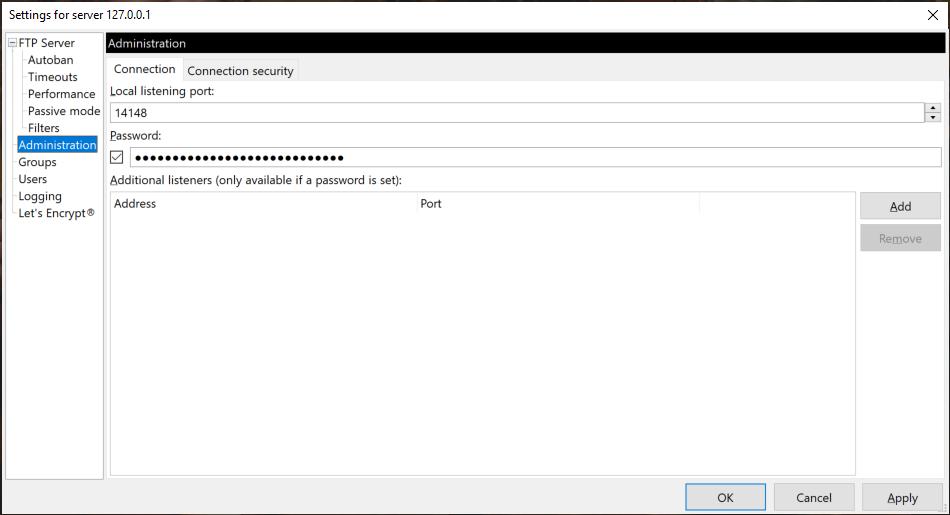
- Server Address: 127.0.0.1
- Port: 14148
- Go to Server > Configure
-
In the server settings window, navigate to the Administration section. The listening port and password previously defined will be shown
-
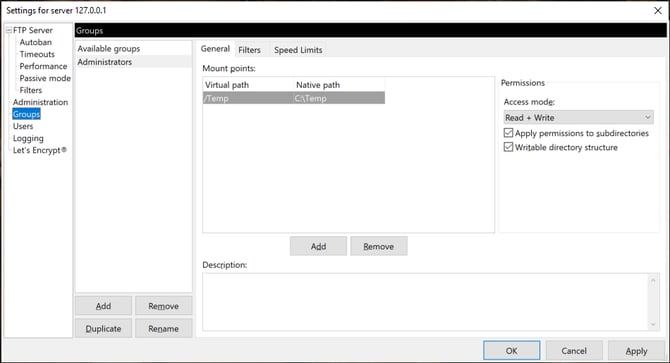
Navigate to the Groups section. Add a new group. Define the virtual and native paths.
-
- Navigate to the Users section
- Click Add to create a new user and give them a name
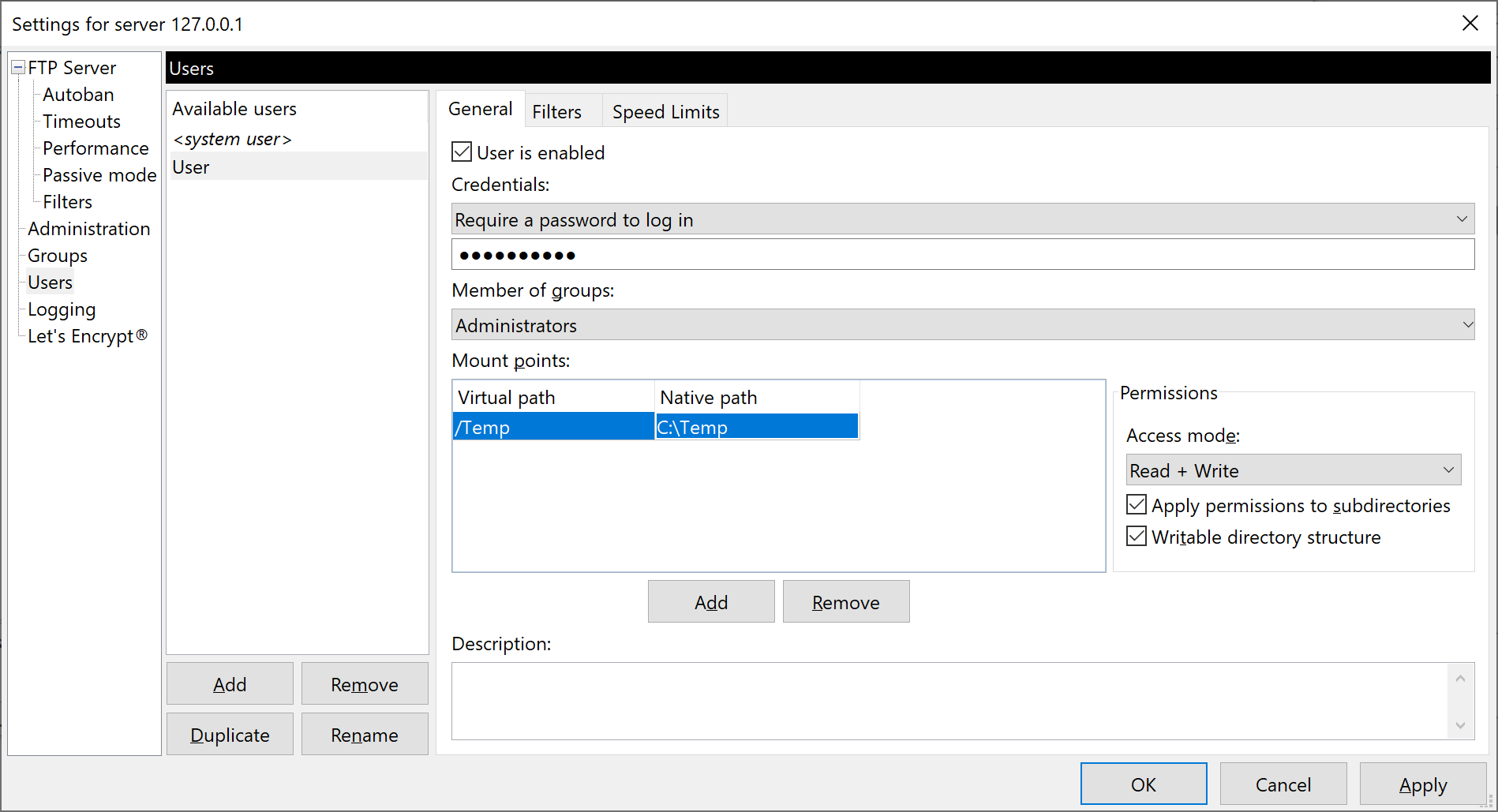
- Make sure the box for User is enabled is checked. Change the credentials option to require a password. Enter the desired password.
- Enter virtual and native paths. Make sure the access mode is set to Read + Write
- Click OK to save settings.
- Click Add to create a new user and give them a name
Q.series FTP Data Logging Errors and Troubleshooting
FTP Error: 550 SSL/TLS required on the control channel
This error indicates that the FTP server requires an SSL/TLS-encrypted connection (FTPS), which is not supported by Q.series controllers. For secure file transfer, use SFTP instead.
SendFTP: Failed to open connection <failed to do name resolution of hostname>
This error indicates that a hostname is configured for the FTP server, but either no DNS server is configured in the controller’s network settings or the configured DNS server is unreachable. As a result, the controller cannot resolve the hostname to an IP address and cannot establish a connection to the FTP server.
SendFTP: Failed to send file <could not open file for writing>
This error indicates that the FTP client successfully connected to the server, but the server could not create or write the file. Possible causes include an invalid or missing directory, insufficient permissions or storage space, a read-only destination, an invalid filename, a locked file, or file path length restrictions.
SendFTP: Failed to get file state <>
This indicates that the FTP client attempted to retrieve the status of a file on the FTP server but was unable to obtain valid information. Possible causes include the file not yet existing on the server, insufficient permissions to access the file or directory, limited support for FTP commands such as SIZE, MDTM, or LIST, or firewall/NAT restrictions preventing directory listings or file status queries.
Frequently Asked Questions About FTP and SFTP Data Logging
Should I use FTP or SFTP for remote data logging?
Use SFTP when measurement files are transferred across shared or public networks because it provides encrypted communication. Standard FTP may be appropriate within an isolated, trusted network. Gantner Q.series controllers support FTP and SFTP; FTPS is not supported.
Can a Q.series controller connect to an FTP server using a hostname?
Yes. A Q.series controller can use either an IP address or hostname for the FTP server. When using a hostname, configure a valid and reachable DNS server in the controller’s network settings. Without DNS resolution, the controller cannot locate the server and will report a connection error.
What should I check before deploying FTP data logging at a remote site?
Confirm that the server is reachable from the controller, the correct port and destination directory are configured, and the user account has write permission. Also verify available server storage and firewall settings. For unattended monitoring, perform a test transfer and check the controller logs for FTP errors before commissioning.