![favicon_GI.png]](https://knowledge.gantner-instruments.com/hs-fs/hubfs/favicon_GI.png?width=40&height=40&name=favicon_GI.png)
What is a data logger?
A data logger in a professional data acquisition (DAQ) system is used to automatically record a defined set of measurement variables to one or more data files for later analysis, traceability, or reporting. The logger periodically stores the latest values of selected variables at a user-defined logging sample rate, which can differ from the acquisition sample rate. For example, signals may be acquired at 100 kS/s for real-time processing while only selected results are logged to file once per second. Depending on the application, a data logger can operate continuously, on a schedule, or be triggered by events or alarm conditions. Professional DAQ systems also support multiple loggers simultaneously, each configured with its own set of variables, logging interval, storage location, and file format to meet different monitoring and testing requirements.
When should you use continuous, triggered, or event-based logging?
The optimal logging mode depends on your application and the type of data you need to capture. Continuous logging is ideal when every measurement is important, while triggered and event-based logging reduce storage requirements by recording only relevant events.
|
Logging Mode |
Best For |
|
Continuous |
Long-duration monitoring, endurance testing, structural health monitoring, process monitoring |
|
Triggered |
Crash tests, impact tests, fatigue testing, transient events, capturing pre- and post-trigger data |
|
Event-Based |
Alarm conditions, process events, threshold violations, machine diagnostics |
Setting up autonomous data logging on the controller
Step 1: Adding a logger to the controller configuration
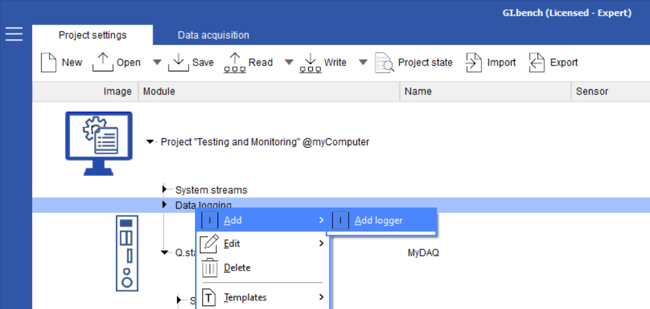
Right-click the Data logging node under the controller and select Add > Add Logger.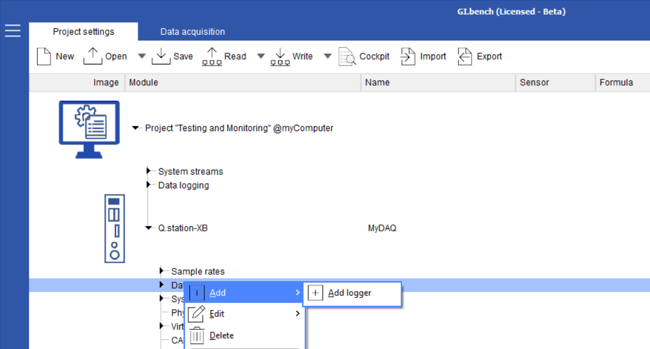
Step 2: Adding variables to a logger
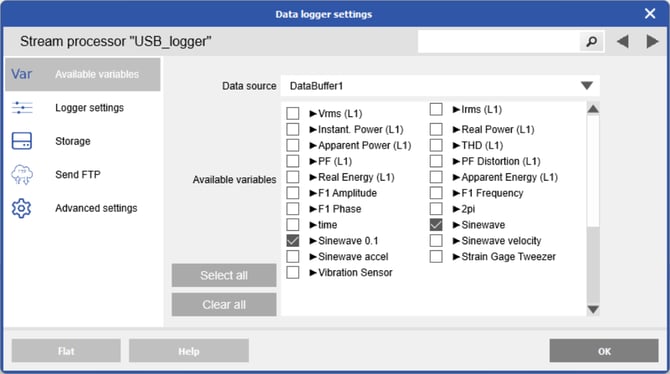
Double-click the newly created logger to open its settings. In the Available Variables tab, select the data source (data stream) and choose which channels to log. Only channels from the selected data stream can be recorded.
Step 3: Setting up the data logger
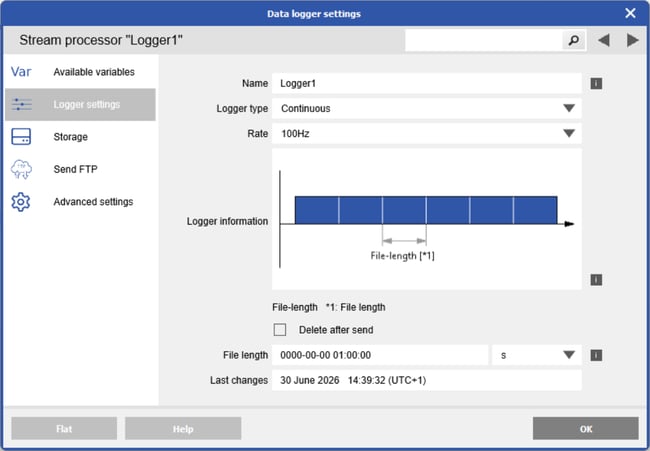
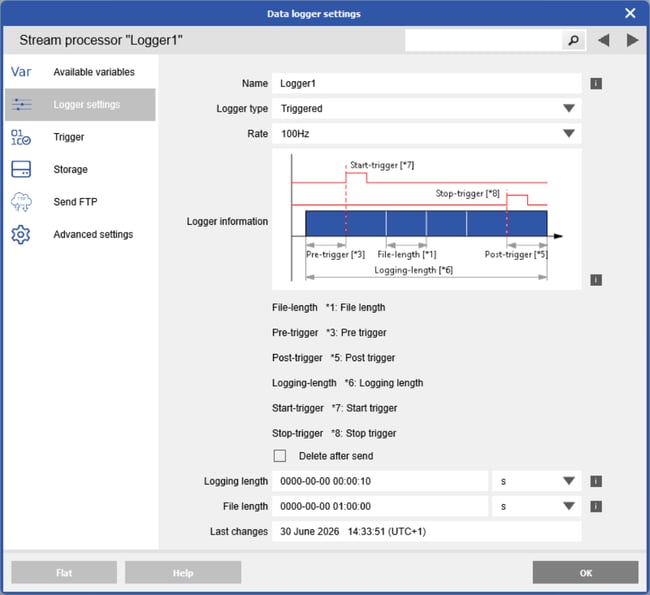
In the Logger Settings tab, define how data should be recorded. The following parameters can be configured:
-
Name: Provide a name for each logger. This name will be used as a prefix for the recorded data files
-
Logger type: Choose the logging mode (Continuous, Triggered, or Event-Based) depending on how you want to capture data.
-
Rate: Set the rate at which data is recorded to a file. It is possible to set a logging rate that is lower than the actual data acquisition rate, as the data logger will automatically resample the data.
-
File length: Define the maximum size of a data file by specifying a limit in terms of time (seconds), number of samples / scanlines (data sets), or file size (bytes).
The following file length settings are aligned to absolute clock times, meaning that new files are created at fixed time boundaries (for example, a 1-hour file starts on the hour):
1 day | 1 hour | 10 minutes | 5 minutes | 1 minute | 30 seconds | 10 seconds
All other file length settings are not aligned to absolute clock times and create new files relative to the time at which the logger was started.
When a Triggered or Event-Based logger is selected, additional settings become available to configure the logger's trigger behaviour.
Step 4: Define file storage settings
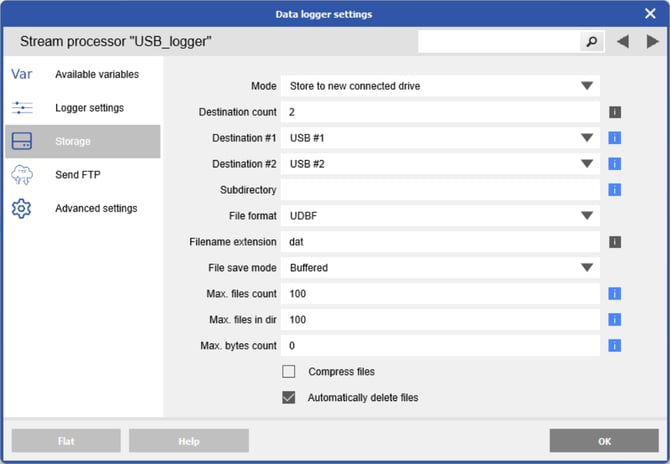
In the Storage tab, the file storage parameters can be configured. The following parameters can be configured:
-
Mode: Determines how and in what sequence data is written to different storage destinations. Additional storage destinations can be configured by increasing the Destination count setting.
-
Move: Data is stored on the primary storage destination. When a secondary storage device is connected, all existing files are copied to it and removed from the primary location, while data storage on the primary destination continues uninterrupted. This allows, for example, transferring files from the controller’s internal drive to a USB drive to free up space.
-
Copy: Data is stored on the primary destination. When a secondary storage device is connected, all existing files are copied to it while remaining on the primary, with data storage continuing uninterrupted. This allows, for example, retrieving files from the controller’s internal drive via USB while keeping the originals as a backup.
-
Copy, only new data: Data is stored on the primary destination. When a secondary storage device is connected, any files not yet copied are transferred to it, while storage on the primary destination continues uninterrupted. This allows, for example, retrieving data from the controller’s internal drive using multiple USB drives.
-
Protected mode: Prevents unauthorized access to data files by blocking unrecognized storage devices. To enable a device to copy files from the primary storage, place an initialization file named !cmd.usr in the root directory, containing:
-
Section header: [ACCESSDEVICES]
-
Count: Number of supported devices (e.g., Count=2)
-
Item entries: Specify one entry for each authorized storage destination (e.g., Item0=Destination1, Item1=Destination2, etc.)
-
-
Store to new connected drive: When a second storage destination becomes available, the current file on the primary destination is completed, and subsequent logger files are started on the newly connected storage medium. See the use case example here.
-
Automatic drive selection: Data is first stored on the primary destination. If it becomes full, logging automatically continues on the next configured destination. If no additional storage is available, the oldest files on the primary destination are overwritten, creating a ring buffer.
-
-
Destinations can be selected as the Q.station internal memory, network-attached storage, SD card, or USB port (note: Internal memory has a 100 Hz logging rate limit).
-
Optionally enter a name for a subdirectory within the storage destination; it will be created automatically if it does not exist. The subdirectory name supports placeholders, allowing, for example, automatic creation of a new folder each day.
-
File format options and recommended extensions:
-
UDBF: Native Gantner Instruments binary format (*.dat)
-
CSV: Configurable ASCII format (*.csv)
Note: CSV logging is not suitable for high sample rates (>1,000 S/s), particularly when recording many channels. Use UDBF instead. -
MDF: Measurement Data Format, version 4.10 (*.mf4)
-
FAMOS: Format for FAMOS analysis software (*.dat)
-
MATLAB: Level 5 MAT file format (*.mat)
-
- Control logger storage usage by setting limits on disk space, ensuring efficient management and uninterrupted data logging.
-
Max. files count: Maximum number of files the logger may create (0 = unlimited).
-
Max. files in dir: Limits the maximum number of files this logger may create in a directory to manage storage space (0 = disabled).
-
Max. bytes count: Limits the maximum storage size (in bytes) allocated to this logger to manage disk usage (0 = disabled).
-
Compress files: When enabled logger files are stored in a compressed Gzip (GNU Zip) archive with the “.gz” file extension.
-
Automatic file deletion: When enabled the oldest files are automatically deleted when the allocated storage space is fully used.
-
Setting up PC-based data logging using GI.bench
GI.bench offers the ability to set up multiple data loggers that can operate in parallel within a single project, recording data directly to the PC.
Recording data directly to a PC with GI.bench requires a full GI.bench license and a stable network connection between the controller and the PC.
In the Project Settings of GI.bench, right-click the Data logging node and select Add > Add Logger. Follow the steps described above for a controller logger to configure a project logger.