![favicon_GI.png]](https://knowledge.gantner-instruments.com/hs-fs/hubfs/favicon_GI.png?width=40&height=40&name=favicon_GI.png)
The Network Time Protocol (NTP) is a standard for synchronising system clocks over packet-based networks. The following instructions describe how to configure a local PC as an NTP server to synchronise Q.series controllers. These instructions apply to Windows 10 (32-bit and 64-bit) and Windows 11 (64-bit).
-
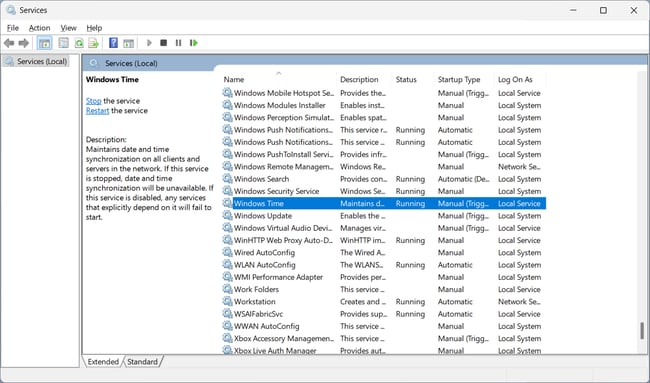
Stop the Windows Time service via: Start → Control Panel → System and Security → Windows Tools → Services.
-
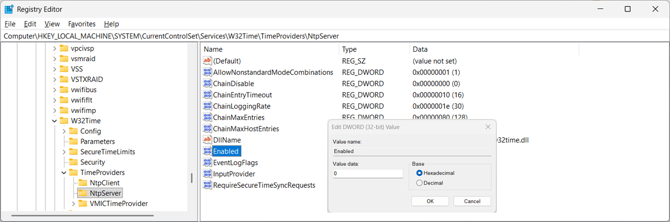
Open the Registry Editor via Start → Run… → regedit and navigate to HKEY_LOCAL_MACHINE\SYSTEM\CurrentControlSet\Services\W32Time\TimeProviders\NtpServer and set the Enabled value to 1.
-
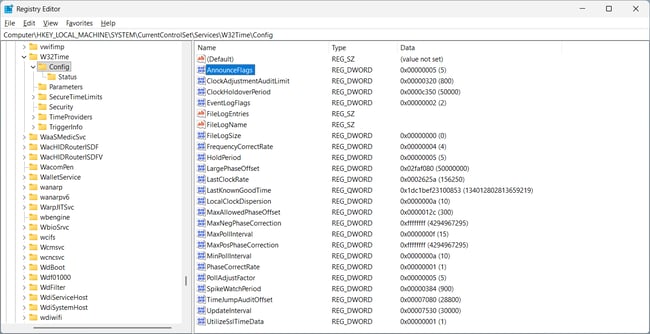
Navigate to HKEY_LOCAL_MACHINE\SYSTEM\CurrentControlSet\services\W32Time\Config and set the AnnounceFlags value to 5.
-
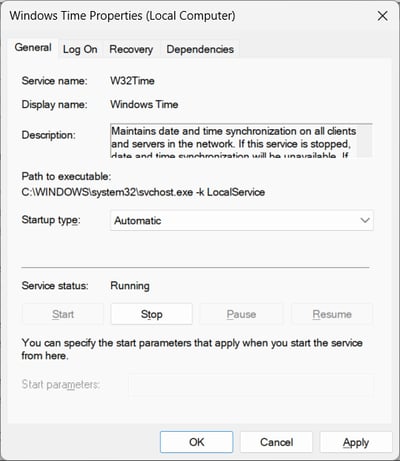
Start the Windows Time service and set the Startup type to Automatic.
A Windows PC configured as an NTP server communicates via UDP on port 123. If a firewall is enabled, it must allow inbound traffic on port 123, as the NTP service requires external request messages.