![favicon_GI.png]](https://knowledge.gantner-instruments.com/hs-fs/hubfs/favicon_GI.png?width=40&height=40&name=favicon_GI.png)
Access to the shared drive on a Q.station, Q.monixx, or Q.core device requires the SMB (Server Message Block) and Common Internet File System (CIFS) protocolsto be enabled on the PC. If it is disabled (as may be the case on some Windows installations), refer to the troubleshooting section for instructions.
Logged data stored on the internal device storage, SD card, or USB storage can be accessed through the device's SMB file share.
Accessing the Data share
- Open Windows File Explorer.
-
In the address bar, enter the IP address of the device in UNC format:
\\192.168.1.200 -
Press Enter.
-
Open the shared folder named Data.
-
When prompted for credentials, enter:
-
Username: data
-
Password: ginsdata
ℹ️ If your computer is joined to a Windows domain, enter the username as
\datato ensure Windows authenticates against the device rather than the domain controller. -
- After successful authentication, open the
hd0directory or any attached storage device directory. Depending on the device configuration and user permissions, files can be viewed, copied, moved, or deleted directly from Windows Explorer.
Mapping the Share as a Network Drive (Optional)
To create a permanent shortcut to the data share:
- Right-click the Data share.
- Select Map network drive...
- Choose a drive letter.
- Complete the wizard.
The share will then appear as a regular drive in Windows Explorer.
Troubleshooting
Enabling SMB 2.0/3.0 on Windows 11
-
Right-click the Start Menu (Windows logo) and select Terminal (Admin).
-
Run the
Get-SmbServerConfiguration | Select EnableSMB2Protocolcommand to verify whether SMB2 and SMB3 are enabled. A value of True indicates that the protocols are enabled, while False indicates that they are disabled. -
If SMB2 or SMB3 is disabled, run the
Set-SmbServerConfiguration -EnableSMB2Protocol $truecommand to enable both protocols, as SMB3 is built on top of SMB2. -
After enabling the protocols, you may need to restart the SMB Server service for the changes to take effect by running the
Restart-Service -Name "LanmanServer"command.
Enabling SMB 1.0 on Windows 10/11 (legacy)
Older Gantner Instruments devices do not support SMB 2.0/3.0 and are only accessible using SMB 1.0. To enable SMB 1.0 on Windows 10/11, open Control Panel → Programs → Turn Windows features on or off, enable SMB 1.0/CIFS File Sharing Support, and restart the PC.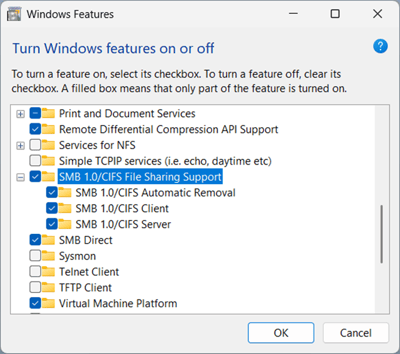
Unauthenticated guest access is blocked
In case you get the message “You can't access this shared folder because your organization's security policies block unauthenticated guest access", access may be blocked by security policies, refer to the corresponding Microsoft troubleshooting guide for further guidance.